[QTDragon] blocking in hal_manualtoolchange dialog

More
2 years 2 months ago #308006 by chernogorsky
Do you have any example of handler to replace dilog ?

I may be end up with rewrite pistprocessor adding pause / msg before tool change

Im ok with remap/sub call /etc

Please Log in or Create an account to join the conversation.

More
2 years 2 months ago #308017 by cmorley
This is an example - it only changes the dialog title.

in your config folder there should be a folder named qtvcp/screens/qtdragon
in that folder add this file, rename it qtdragon_handler.py

Erasing/renaming the file will return you to the standard dialog.

 
The following user(s) said Thank You: chernogorsky

Please Log in or Create an account to join the conversation.

More
2 years 2 months ago #308135 by chernogorsky
Thank you, thats what I was looking
will start from here and update if succeded/failed )

Please Log in or Create an account to join the conversation.

More
2 years 2 months ago #308148 by chernogorsky
Ok, I made some tests
I managed to replace the button, but
I can do nothing from the dialog itself
it looks like during the dialog im in "auto" mode
and non of my attempts

cmdList.append(('command',"G1 G53 X300"))
#ACTION.PAUSE_MACHINE()
ACTION.CALL_MDI_LIST(cmdList)
#ACTION.CALL_MDI_WAIT('o<pnc_tc_manual> call',time=10, mode_return=True)
#ACTION.CALL_OWORD('o<pnc_tc_manual> call')
#ACTION.RESUME()
#ACTION.cmd.mdi_and_return(None,cmdList)

works

[QTvcp.QTVCP.QT_ACTION][DEBUG] MDI_WAIT_Command= G0 G53 X300, maxt = 10 (qt_action.py:204)
[QTvcp.QTVCP.QT_ACTION][DEBUG] CALL_MDI_WAIT Command: G0 G53 X300 (qt_action.py:207)
[QTvcp.QTVCP.QT_ACTION][ERROR] CALL_MDI_WAIT timeout surpassed 10 seconds (qt_action.py:211)
mdi_execute_abort: dropping 1 queued MDI commands


I probably miss the point you try to explain earlier

The only option I have not tried yet is
change the dialog, so tool_change button press return some value
work with that value in the loop in qt_toolchangeauto macro, since it's in normal auto mode - it may execute gcode / commands

it would reload dialog every button press (on pi4 its a pain), but at least it might work

Please Log in or Create an account to join the conversation.

More
2 years 2 months ago #308149 by Aciera
The point is that you cannot inject MDI commands when in auto mode.
My approach would be to use a custom mcode.
Have a look at this
forum.linuxcnc.org/38-general-linuxcnc-q...iable?start=10#57149

It's a bit dated but should still work. You could also use python instead of tcl.
The following user(s) said Thank You: chernogorsky

Please Log in or Create an account to join the conversation.

More
2 years 2 months ago #308157 by Aciera
So here is an example using a python remap.

To setup python remap in your config you will need to:
1. In your config folder create a folder named 'python'
2. save this to the 'python' folder as 'toplevel.py':
Code:
import remap
3. save this to the 'python' folder as 'remap.py'
Code:
import sys import traceback from interpreter import * import emccanon from util import lineno, call_pydevd import hal from tkinter import * from tkinter import messagebox      def g69_core(self):     global coordinates     if self.task == 1:         try:             def button_pressed(value):                 global coordinates                 coordinates = value                 ws.destroy()                              ws = Tk()             # Tkinter way to find the screen resolution             screen_width = ws.winfo_screenwidth()             screen_height = ws.winfo_screenheight()             size = tuple(int(_) for _ in ws.geometry().split('+')[0].split('x'))             x = screen_width/2 - size[0]/2             y = screen_height/2 - size[1]/2             ws.geometry("400x120+%d+%d" % (x, y))             ws.title('LinuxCNC')             #ws.geometry('200x110')             Label(ws, text=("Some text here\n")).pack()             b1 = Button(ws, text=('Move to X1'), padx=10, pady=5, command=lambda: button_pressed('X1'))             b1.pack(pady=5)             b2 = Button(ws, text=('Move to X-2'), padx=10, pady=5, command=lambda: button_pressed('X-2'))             b2.pack(padx=5)             ws.mainloop()         except Exception as e:             print('ERROR: show_operator_message: ', e)         self.execute('G0' + coordinates, lineno())     yield INTERP_EXECUTE_FINISH     return INTERP_OK

4. save this as 'g69remap.ngc' to a folder listed in your ini file under [RS274NGC] SUBROUTINE_PATH
Code:
; this is the wrapper remap for G69 o<g69remap>sub M66 L0 E0       ; force sync, stop read ahead M469            ; call the python G69_core code      M66 L0 E0       ; force sync, stop read ahead o<g69remap>endsub m2

5. Add this to your ini file (if not already included)
Code:
[PYTHON] # where to find the Python code: # code specific for this configuration PATH_APPEND = ./python # import the following Python module TOPLEVEL = ./python/toplevel.py # the higher the more verbose tracing of the Python plugin LOG_LEVEL = 3

6. Add this to the [RS274NGC] section of your ini file
Code:
          REMAP = G69   modalgroup=1   ngc=g69remap           REMAP = M469  modalgroup=10  python3=g69_core

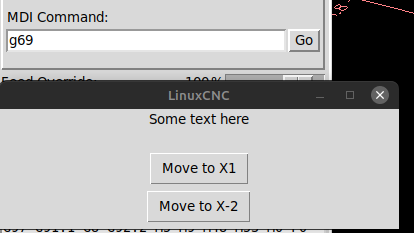
This should give you a new GCode 'G69' which should then open a popup window and give you two options to move:
 

Upon pressing a button the machine will move to the selected position and the program will continue.

 
The following user(s) said Thank You: chernogorsky

Please Log in or Create an account to join the conversation.

Moderators: cmorley
Time to create page: 0.065 seconds
Powered by Kunena Forum