Allocating a particular network config to a specific network card on startup

More
3 years 4 months ago #274246 by tommylight
Something does not add up, the OS does not choose what network to use for what if it is manually set, ever, even when using the same type of network card.
-Linux is very, very good at networking, you can have several active IP addresses for a single network card, all working at the same time.
-I use a lot of PC's with all kinds of network cards with Mesa boards, i never ever had them change anything.
--
The first one is important as it seems you have dual IP's for both cards.

Please Log in or Create an account to join the conversation.
More
3 years 4 months ago - 3 years 4 months ago #274254 by Waldemar
I'll make a video to let you see exactly what's going on. Again, it's not causing me any issues whatsoever in terms of functionality, everything works how I expect it to, just odd that it swaps configs between the two cards, which I can assure you 100% that it's doing. Look, here's a video to prove it:


Prior to the restart, note how the Ethernet Connection to Laptop is assigned to the RTL810xE network card and the Ethernet Connection to Mesa is assigned to the RTL811//etc.  After re-boot they've swapped.

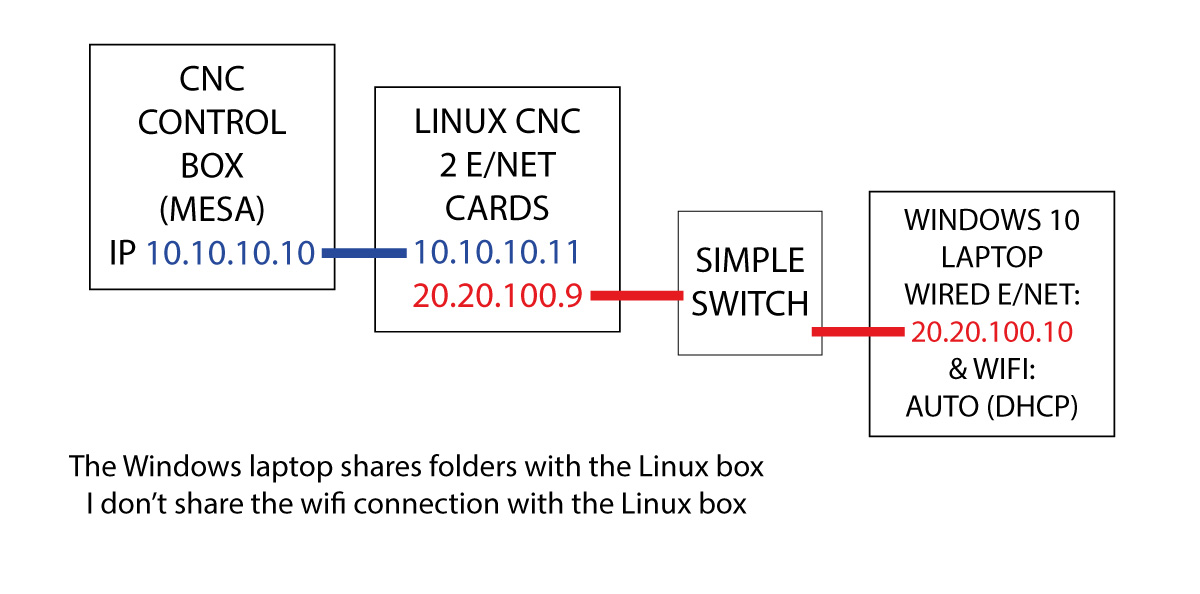
Once again, the configs use entirely different IP addresses - the Mesa is on 10.10.10.10 and the network card that connects to it is on 10.10.10.11 (and this network card connects directly to the Mesa card with no intermediate switch/router etc.) whilst the config for the card that does the networking uses an entirely different IP - ie. 20.20. and connects to the laptop via a switch (I would have used the standard 192.168 but when I tried that Adobe CC over on the laptop decided to start trying to use the wired (private no internet) instead of the readily available wireless.  There's absolutely nothing that you can configure in the Adobe software to change this (I've asked Adobe).  For clarity, here's a diagram of my set up.

 
Last edit: 3 years 4 months ago by Waldemar.

Please Log in or Create an account to join the conversation.

More
3 years 4 months ago #274255 by tommylight
Did you use the "add new connection" from the network manager?
Delete the created configs, edit the existing ones and change their names if you want to.

Please Log in or Create an account to join the conversation.

More
3 years 4 months ago #274256 by Waldemar
I used Applications/Settings/Advanced Network Configuration then in that window the + button to add new connections.

>Delete the created configs, edit the existing ones and change their names if you want to.

Sorry, this line isn't making any sense to me - do I delete the configs, or edit them? What good is changing their names going to do?

To be honest I've already tried new configs etc. and it makes no difference. Guess it's just a quirk that I'll navigate by letting the OS boot before powering up the control box.

Thanks for your time, though. Appreciate it.

Wal.

Please Log in or Create an account to join the conversation.

More
3 years 4 months ago #274259 by tommylight
When you created new connections, you did not assign what network card each connection should use, hence the changes after reboot. Even if you do assign the card, each of those will still have 2 active connections, as explained above, Linux can have multiple network connections with multiple IP addresses for a single network card.
Delete means delete.
You can also edit those, but you will still have 4 active connections for 2 network cards, hence "delete the created ones", not the default ones named "wired connection 1" and "wired connection 2", these two need to be edited and their name can also be changed to whatever makes it easier to discern.
This shows the default wired connections, in my case just one, double click each to edit.

Or, if this seems easier
-delete all wired connections
-create two new connections assigning each to a network card
This is the simplest way, so probably should have started with this! :)
The following user(s) said Thank You: Waldemar

Please Log in or Create an account to join the conversation.

More
3 years 4 months ago #274265 by Waldemar
That's exactly what I hadn't done: selected the hardware specific to the config in the ethernet tab. Didn't even notice it in my rush to get to the IPv4 tab.

Sorted the issue, many thanks.

Wal.
The following user(s) said Thank You: tommylight

Please Log in or Create an account to join the conversation.

Time to create page: 0.077 seconds
Powered by Kunena Forum