
- Posts: 2419
- Thank you received: 2349
QT C++ code samples
- Grotius
- Offline
- Platinum Member
-

Less
More
7 years 4 months ago - 7 years 4 months ago #137064
by Grotius
Replied by Grotius on topic QT C++ code samples
Hi Rod,
Thanks.
I spend some time making dialog's and a file open dialog is in progress.
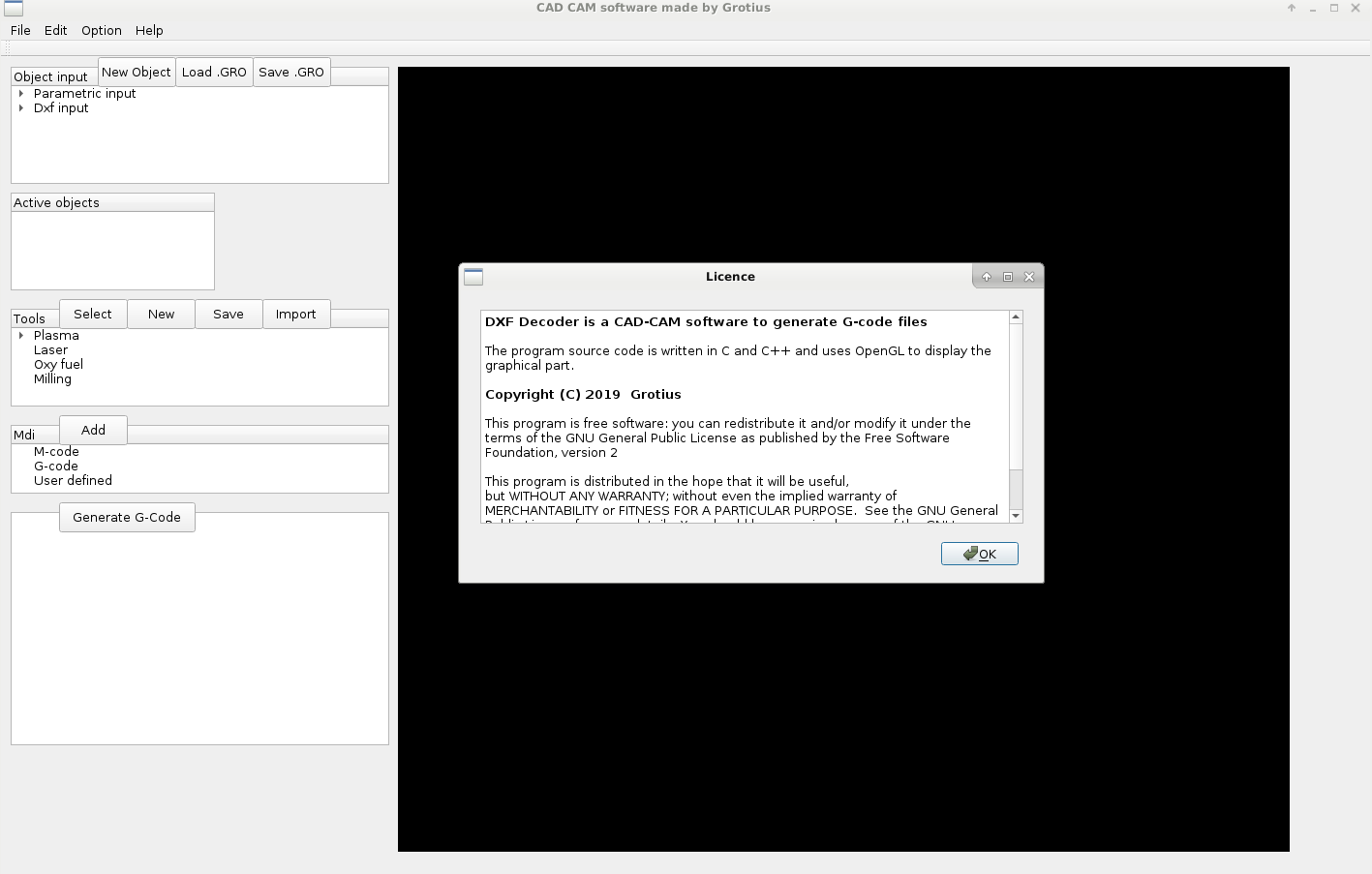
Dialog example :
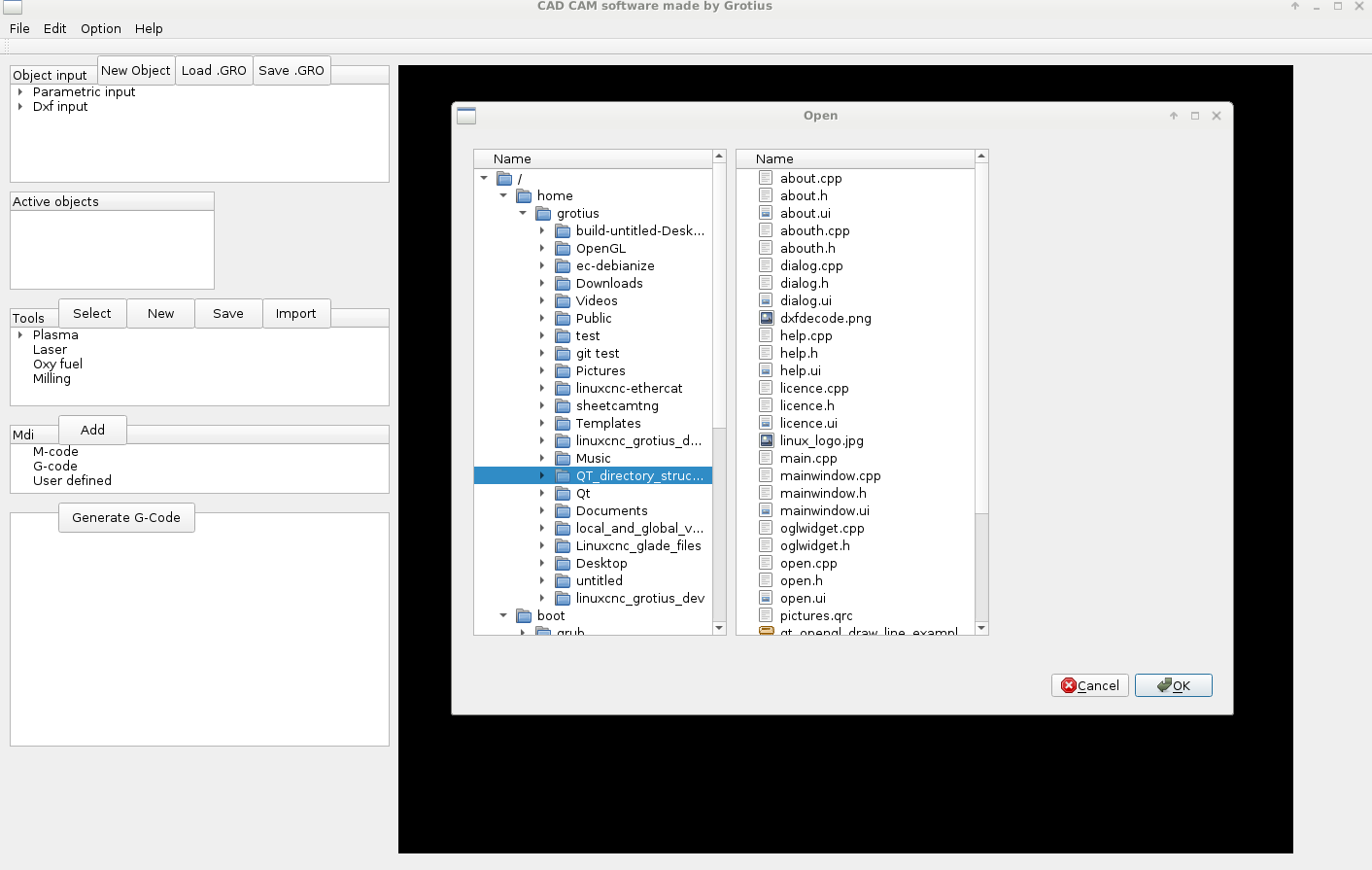
File open example, not finished :
All project files are attached.
To run the program unzip the untitled.zip and type in terminal : ./untitled
To make an extra ui screen or dialog. It takes some knowledge if you want to connect signals trough the menu bar.
I made a short line of how to achieve this.
But for me it was a quite hard experience to find out. Googling solved my looked over the eye problem.
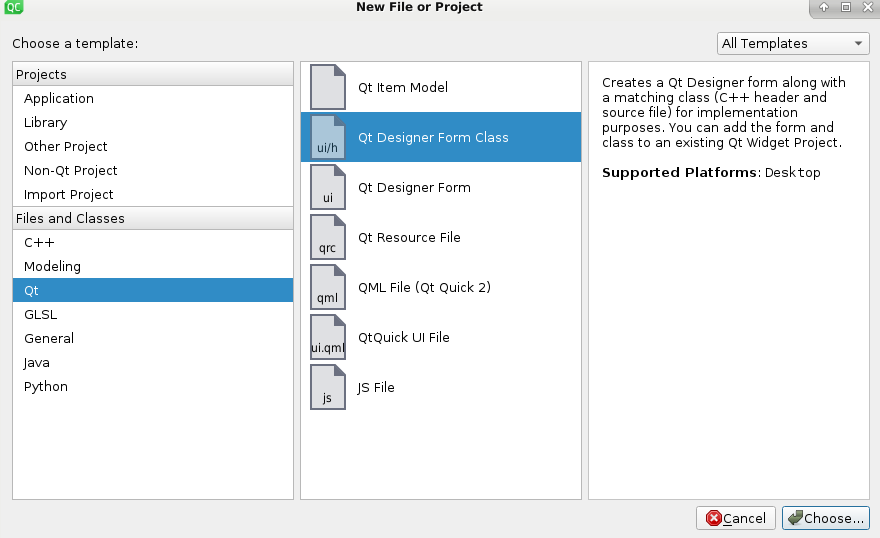
First make a new class.
In my case a blank window.
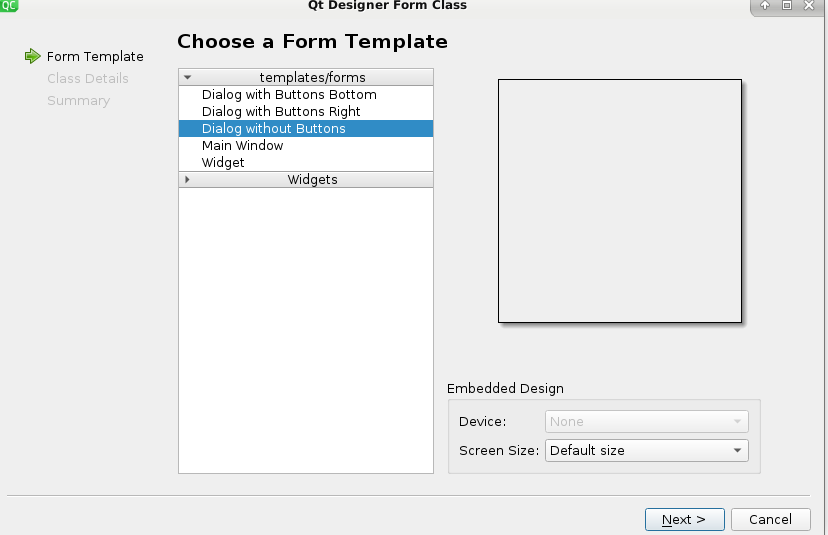
Provide a class name.
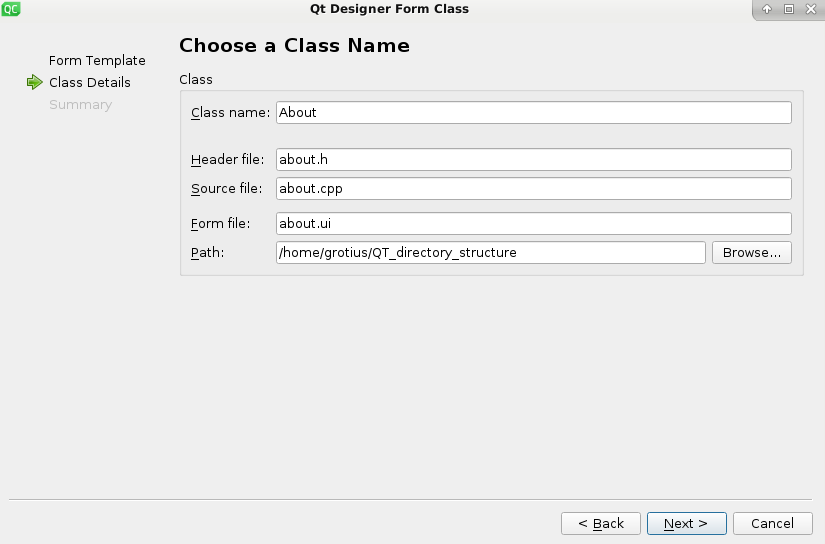
Name the window to your needs.
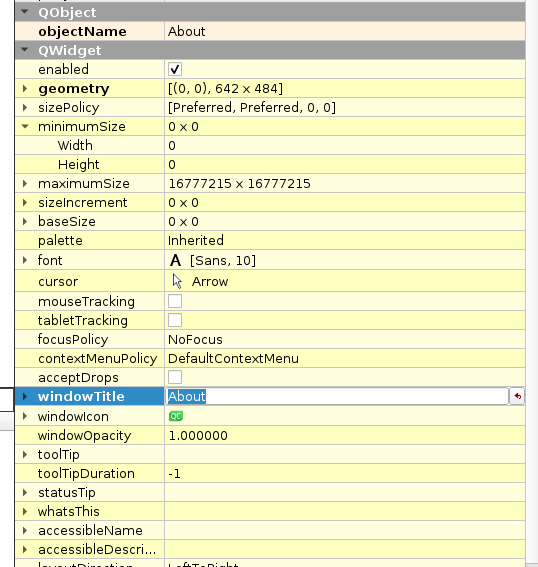
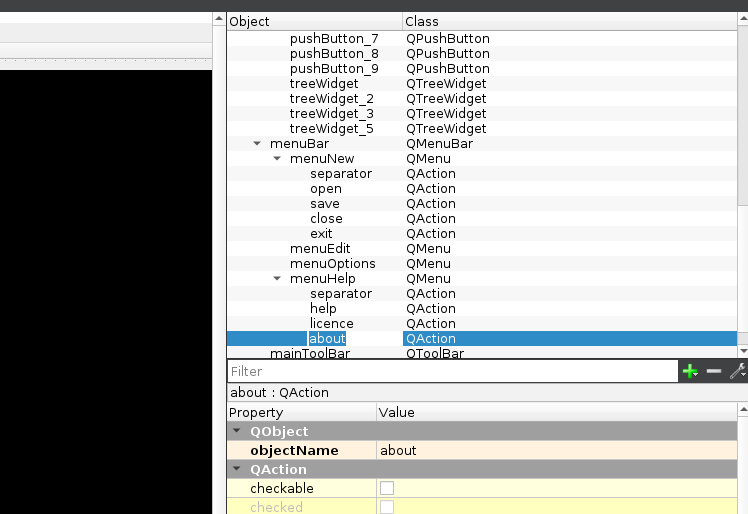
This is my main window menu bar. rename the links to your needs.
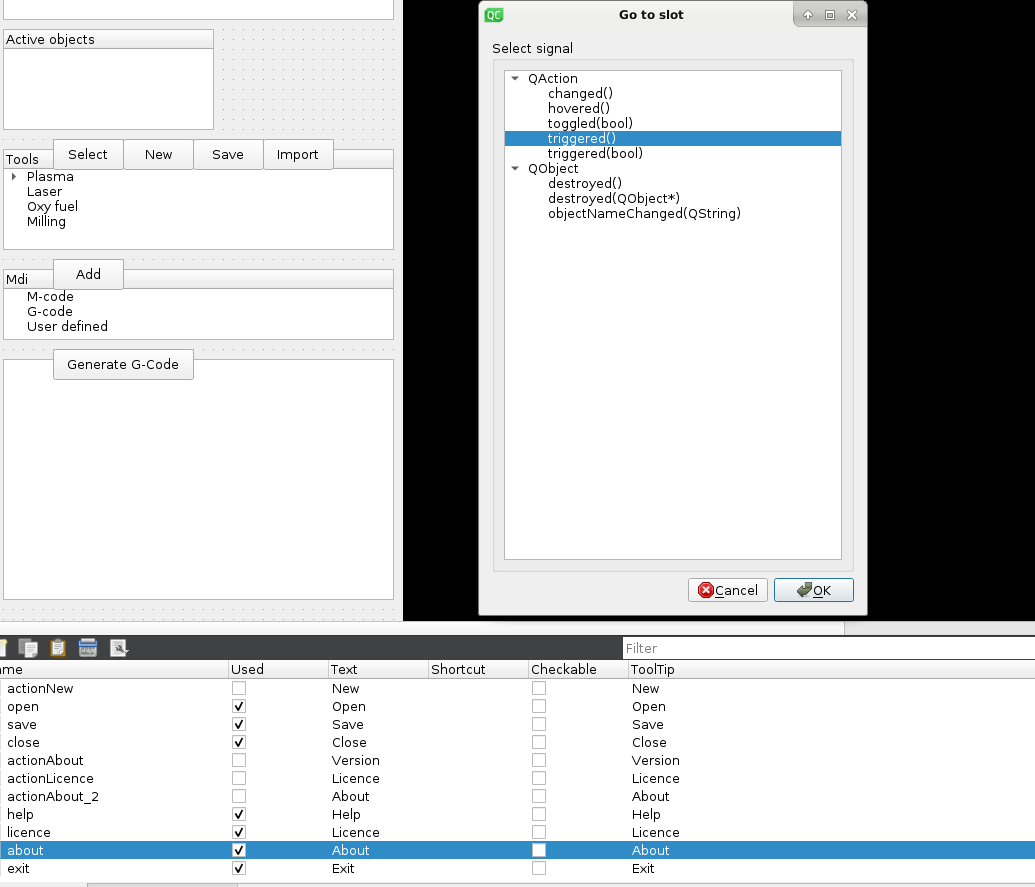
Menubar slots appear in the below screen. I was lost for this for a while.
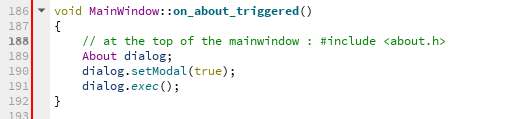
This code will load your second screen
I made some progress. Founded out that Draftsight is written in QT also.
If you go to the 2019 version. It's directer during making a drawing. During making a drawing the responce is directer.
When the file loader and saver dialogs are ready, i am going to think about how to set up the .gro file structure.
That is a dxf and ngc inluded in one file. Hope to do a little magic by the time i get there.
For the one's who are thinking where are the parametric input's? They are behind the OpenGL screen at the moment.
I need to integrate them in a input pop up window soon !!!
Thermal Dynamics has sent me an okey to integrate the cut chart's open source. I am waiting for Hypertherm. That can take some time.
Thanks.
I spend some time making dialog's and a file open dialog is in progress.
Dialog example :
File open example, not finished :
All project files are attached.
To run the program unzip the untitled.zip and type in terminal : ./untitled
To make an extra ui screen or dialog. It takes some knowledge if you want to connect signals trough the menu bar.
I made a short line of how to achieve this.
But for me it was a quite hard experience to find out. Googling solved my looked over the eye problem.
First make a new class.
In my case a blank window.
Provide a class name.
Name the window to your needs.
This is my main window menu bar. rename the links to your needs.
Menubar slots appear in the below screen. I was lost for this for a while.
This code will load your second screen
I made some progress. Founded out that Draftsight is written in QT also.
If you go to the 2019 version. It's directer during making a drawing. During making a drawing the responce is directer.
When the file loader and saver dialogs are ready, i am going to think about how to set up the .gro file structure.
That is a dxf and ngc inluded in one file. Hope to do a little magic by the time i get there.
For the one's who are thinking where are the parametric input's? They are behind the OpenGL screen at the moment.
I need to integrate them in a input pop up window soon !!!
Thermal Dynamics has sent me an okey to integrate the cut chart's open source. I am waiting for Hypertherm. That can take some time.
Last edit: 7 years 4 months ago by Grotius.
Please Log in or Create an account to join the conversation.
- Grotius
- Offline
- Platinum Member
-
Less
More
- Posts: 2419
- Thank you received: 2349
7 years 4 months ago #137199
by Grotius
Replied by Grotius on topic QT C++ code samples
Little project update,
The custom file dialog is loading nice, it works like a file explorer, it display's directory structure at the left panel and file structure at the right panel. A nice advantage is, it does a textfile preview of the file you want to load.
I think i will add a OpenGL preview function to this open file dialog in a later stadium.
When the dxf to g-code function's are integrated, that would be quite easy to do.
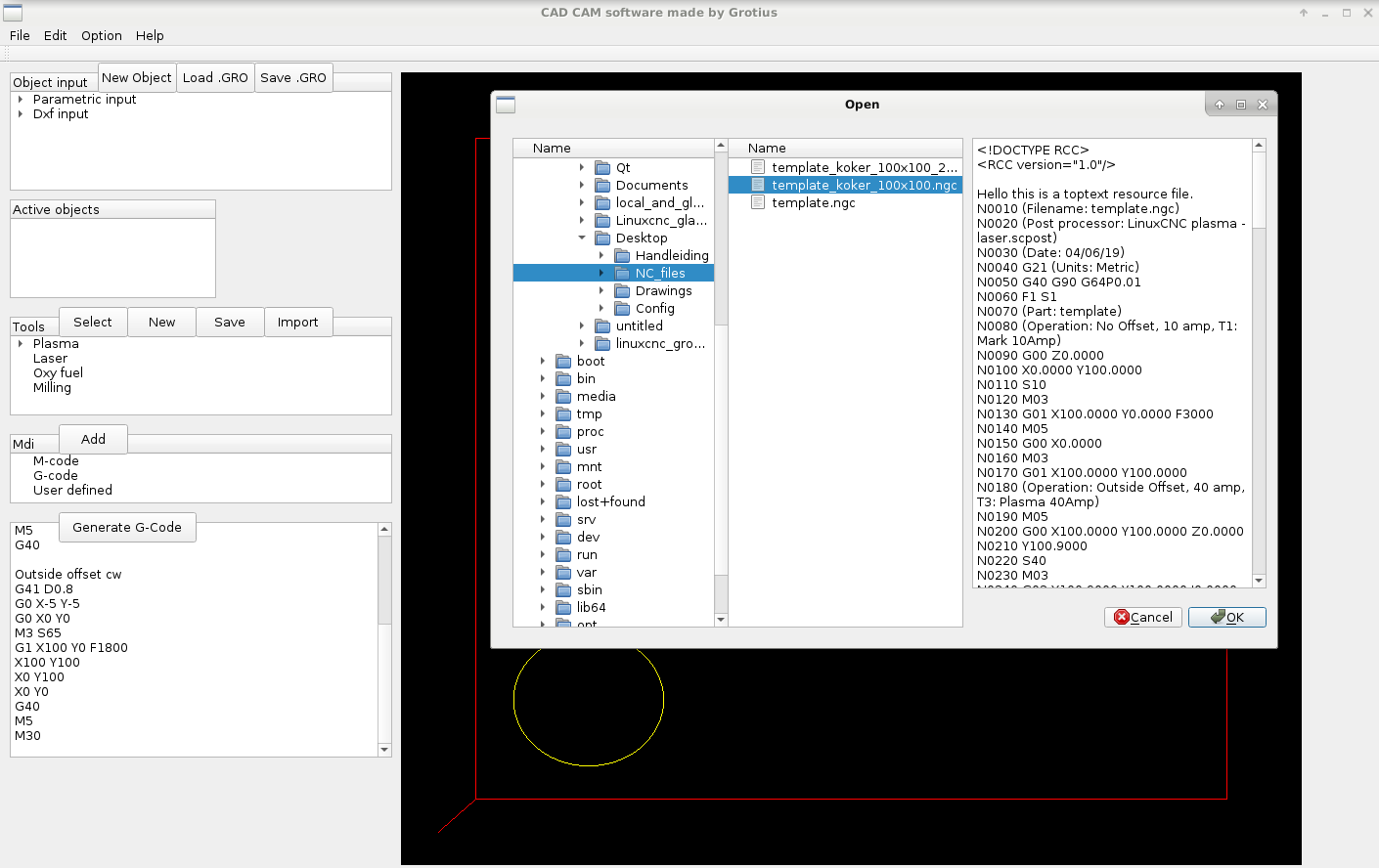
So far so good. Up to the next item.
The custom file dialog is loading nice, it works like a file explorer, it display's directory structure at the left panel and file structure at the right panel. A nice advantage is, it does a textfile preview of the file you want to load.
I think i will add a OpenGL preview function to this open file dialog in a later stadium.
When the dxf to g-code function's are integrated, that would be quite easy to do.
So far so good. Up to the next item.
Please Log in or Create an account to join the conversation.
- Grotius
- Offline
- Platinum Member
-
Less
More
- Posts: 2419
- Thank you received: 2349
7 years 4 months ago - 7 years 4 months ago #137309
by Grotius
Replied by Grotius on topic QT C++ code samples
Little project update.
I was looking to combine a .ngc file (g-code) and a dxf file (cad file) at once, output could be a file .gro file.
I mentioned before linuxcnc has no problem's with reading () sign's trough program execution.
But i have to find a solution or make a filter to load in a .gro file into cad program's.
The .gro file can include also nesting parameters, what can be very handy in future.
My first idea after this test tonight is that we can make a inverse g-code generator.
A generator for saving a g-code file back into dxf format.
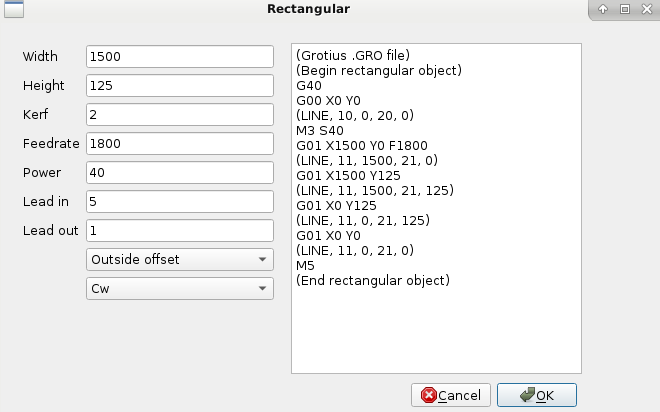
The parametric input example :
The C++ code example :
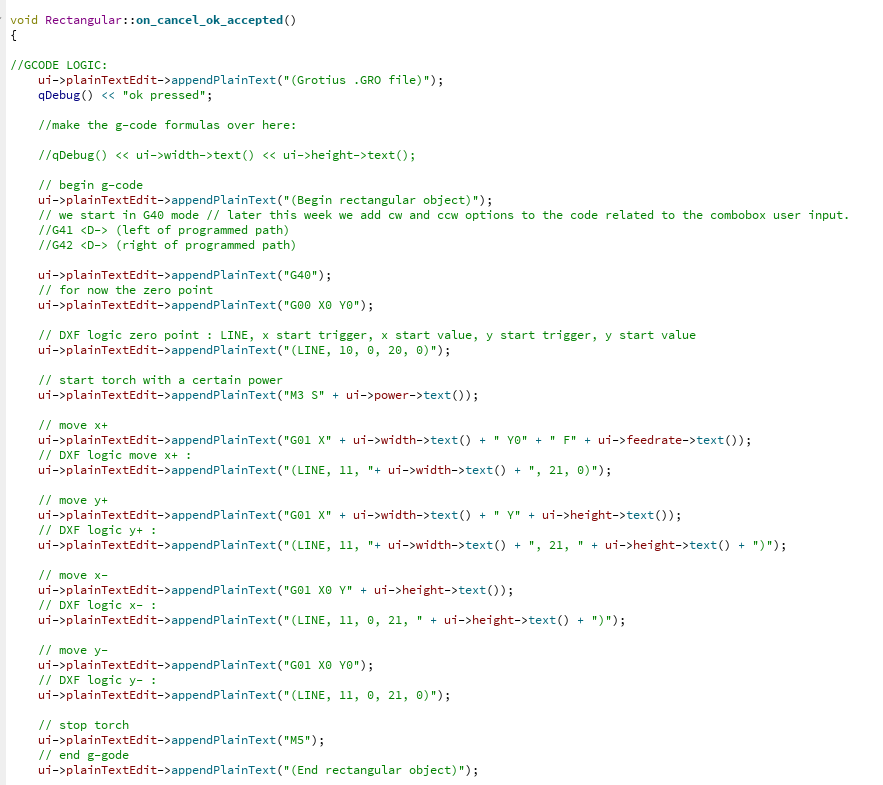
The simplest way is to have different file format output's and keep the output file filter inside the provided C++ program.
Also for a automated Reverse engeneering of a g-code file into a dxf file, the simplest way is to keep the calculation's inside the C++ program.
I was looking to combine a .ngc file (g-code) and a dxf file (cad file) at once, output could be a file .gro file.
I mentioned before linuxcnc has no problem's with reading () sign's trough program execution.
But i have to find a solution or make a filter to load in a .gro file into cad program's.
The .gro file can include also nesting parameters, what can be very handy in future.
My first idea after this test tonight is that we can make a inverse g-code generator.
A generator for saving a g-code file back into dxf format.
The parametric input example :
The C++ code example :
The simplest way is to have different file format output's and keep the output file filter inside the provided C++ program.
Also for a automated Reverse engeneering of a g-code file into a dxf file, the simplest way is to keep the calculation's inside the C++ program.
Last edit: 7 years 4 months ago by Grotius.
Please Log in or Create an account to join the conversation.
- Grotius
- Offline
- Platinum Member
-
Less
More
- Posts: 2419
- Thank you received: 2349
7 years 4 months ago - 7 years 4 months ago #137393
by Grotius
Replied by Grotius on topic QT C++ code samples
Little project update.
In my first c code project i had made some nice c code that load's the dxf file line by line and make a ngc file and print the OpenGL output to a Glut window in GTK+. I did not like Glut because it is a pop up opengl window. And GTK+ was just not loving a widget like OpenGL. So i switched to QT C++ a few weeks ago. And now i finally can go fast !!
My previous written C code has to be conversed from C code to C++ code.
So i started with this today. And it works quite easy.
In the Dxf2Gcode program, goto menubar =>File => Open.
Select your dxf drawing and your output will be saved in the directory the dxf file lives in, you can specify the program .gro output name.
For now i started with the dxf LINE. All others like Circle, Arc, Polyline, etc. will be integrated coming day's.
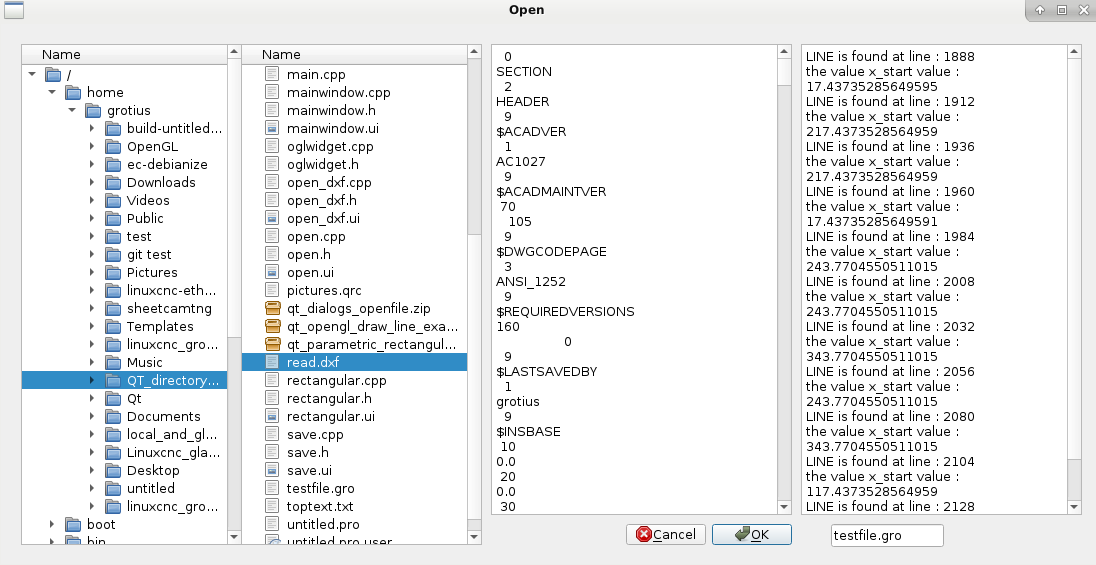
A sample to view the difference in coding C and C++
In this code example i am searching for the word "LINE" and i exclude some words where line is inside the word.
Conventional C coding :

C++ QT coding :
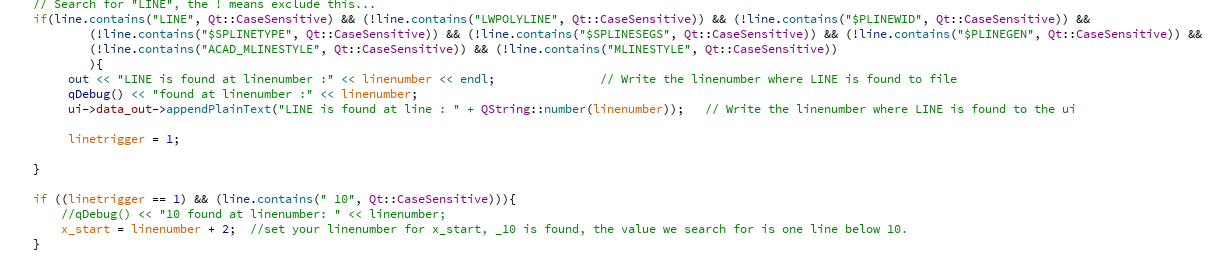
You see, the C++ coding is easyer and quicker to do. I now work with classes, this works nice.
Attached the QT project files.
To run in qt, open the .pro file
To run the program, unzip the attached untitlded.zip file and type in terminal : ./untitled
=> select your dxf file at your pc and see what happen's :lol:
=> menubar => file => open => select dxf
=> the .gro output will be saved in the same directory where the dxf lives in
Trough exceeding the forum file size, the attached file untitled.zip 1.8mb cannot be uploaded here.
In my first c code project i had made some nice c code that load's the dxf file line by line and make a ngc file and print the OpenGL output to a Glut window in GTK+. I did not like Glut because it is a pop up opengl window. And GTK+ was just not loving a widget like OpenGL. So i switched to QT C++ a few weeks ago. And now i finally can go fast !!
My previous written C code has to be conversed from C code to C++ code.
So i started with this today. And it works quite easy.
In the Dxf2Gcode program, goto menubar =>File => Open.
Select your dxf drawing and your output will be saved in the directory the dxf file lives in, you can specify the program .gro output name.
For now i started with the dxf LINE. All others like Circle, Arc, Polyline, etc. will be integrated coming day's.
A sample to view the difference in coding C and C++
In this code example i am searching for the word "LINE" and i exclude some words where line is inside the word.
Conventional C coding :
C++ QT coding :
You see, the C++ coding is easyer and quicker to do. I now work with classes, this works nice.
Attached the QT project files.
To run in qt, open the .pro file
To run the program, unzip the attached untitlded.zip file and type in terminal : ./untitled
=> select your dxf file at your pc and see what happen's :lol:
=> menubar => file => open => select dxf
=> the .gro output will be saved in the same directory where the dxf lives in
Trough exceeding the forum file size, the attached file untitled.zip 1.8mb cannot be uploaded here.
Last edit: 7 years 4 months ago by Grotius.
Please Log in or Create an account to join the conversation.
- Grotius
- Offline
- Platinum Member
-
Less
More
- Posts: 2419
- Thank you received: 2349
7 years 4 months ago - 7 years 4 months ago #137657
by Grotius
Replied by Grotius on topic QT C++ code samples
Integrated the Circle and Arc's today into the QT C++ code and tested in Linuxcnc axis.
The line's where already ingrated so far. I just updated some outdated C code today to stay at maximum precision.
The project file's and program executable is becoming to big to upload. So i find a solution for this.
To download the executable file, stay's here for 1 week : we.tl/t-rqgkzb1tkM
With this file you can do already a few automated step's related to dxf to g-code.
Please test how many line's this program can investegate without being overloaded.....
If something get's overloaded, it's problably the QT plaintextview widget that display's the dxf source file line by line.
M3 and M5 are not integrated yet.
Next item to do is integrate the cad Polyline's, to be continued.
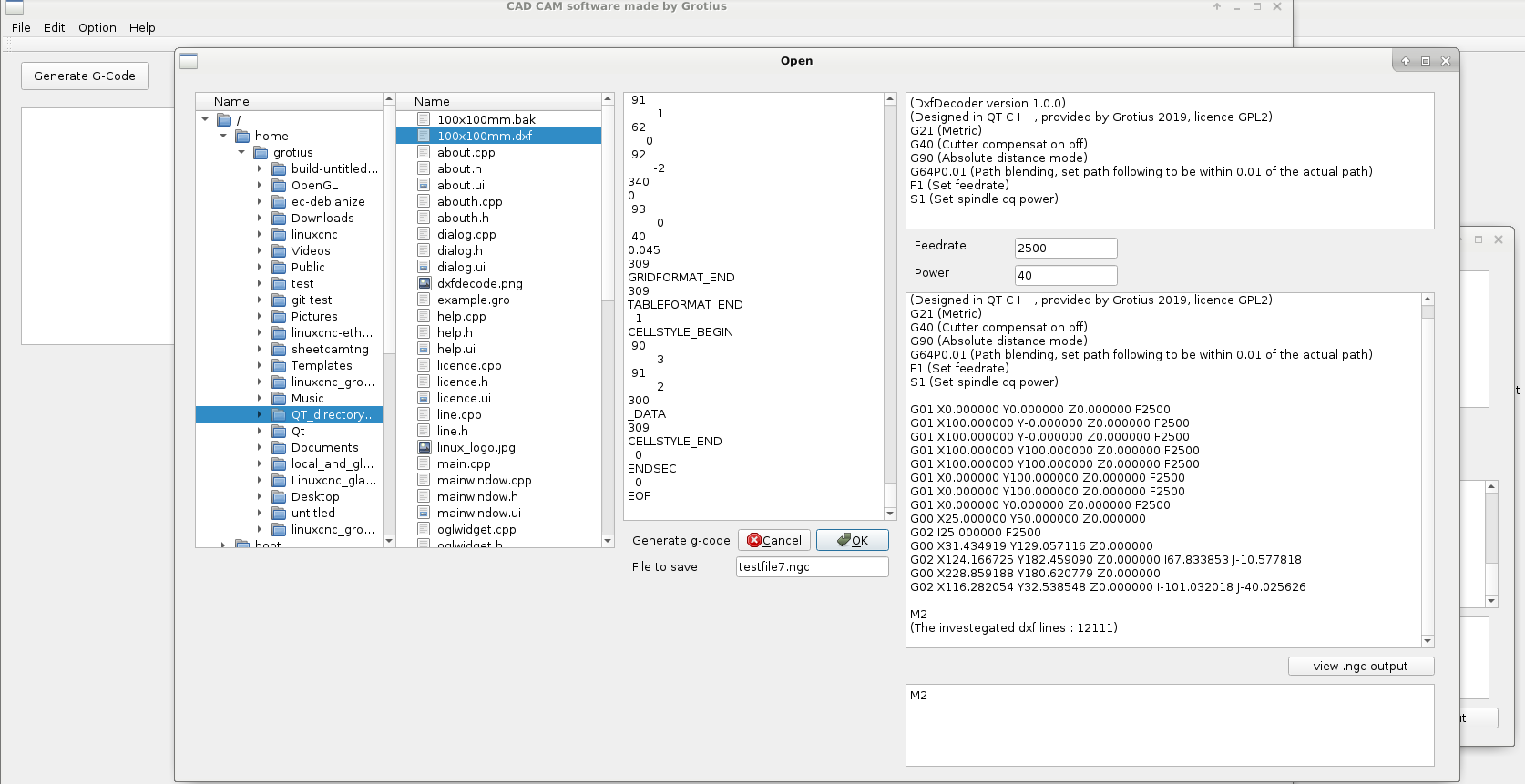
Select : File => open => select your dxf file and click OK. (wait a few second's until it appear's, the progress bar is not available yet)
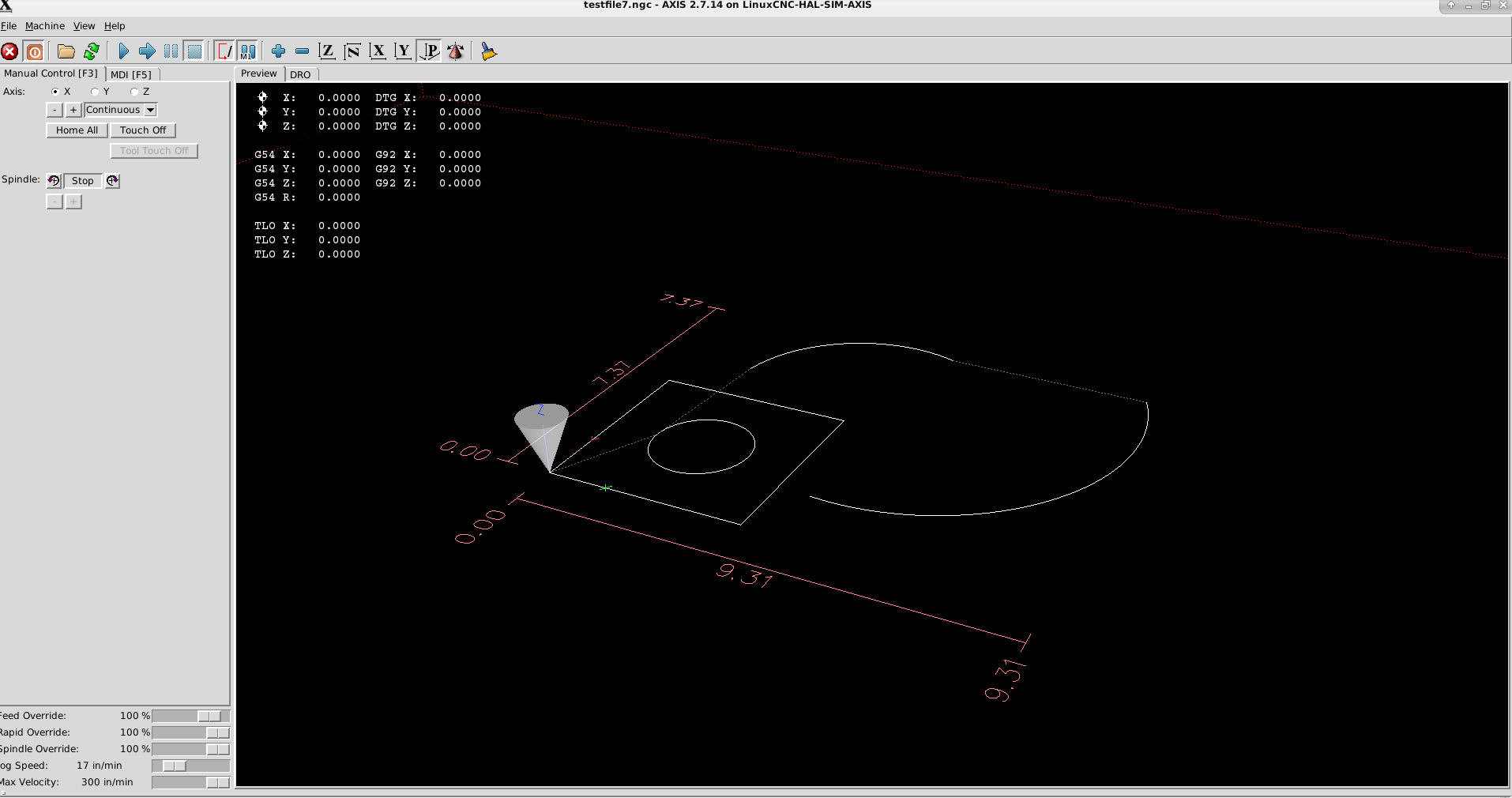
Then you can view code by clicking view code. Test your file in Linuxcnc for output.
If you downloaded the executable file, unzip and type in terminal : ./untitled
Program view to transform the dxf into ngc :
Axis output ngc code view :
The cad program view :
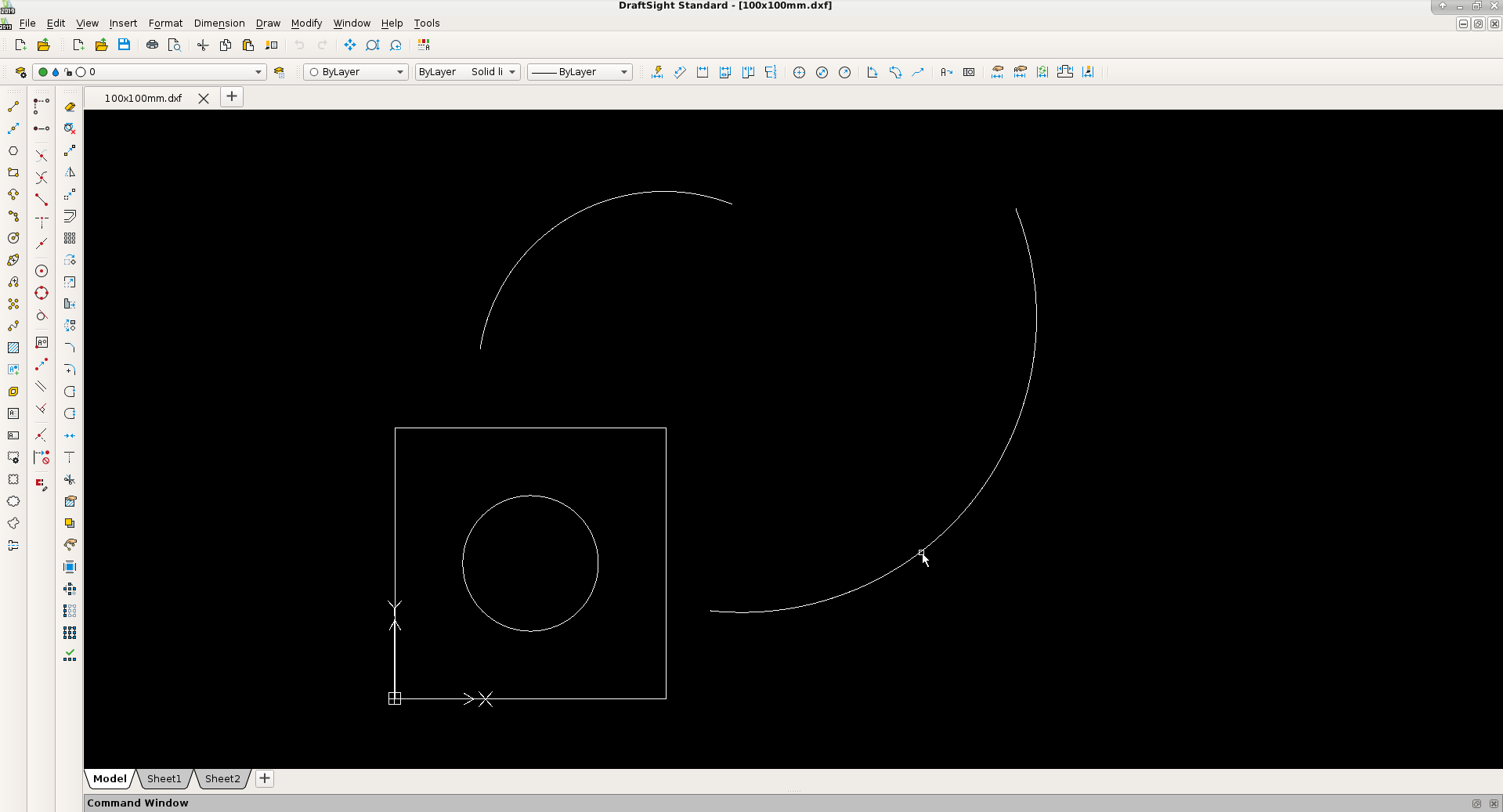
Later on, when i have integrated more, and more, the Dxf2Gcode get's the updated OpenGL view.
Compatible i think up to draftsight 2019 dxf format at the moment.
So far so good.
The line's where already ingrated so far. I just updated some outdated C code today to stay at maximum precision.
The project file's and program executable is becoming to big to upload. So i find a solution for this.
To download the executable file, stay's here for 1 week : we.tl/t-rqgkzb1tkM
With this file you can do already a few automated step's related to dxf to g-code.
Please test how many line's this program can investegate without being overloaded.....
If something get's overloaded, it's problably the QT plaintextview widget that display's the dxf source file line by line.
M3 and M5 are not integrated yet.
Next item to do is integrate the cad Polyline's, to be continued.
Select : File => open => select your dxf file and click OK. (wait a few second's until it appear's, the progress bar is not available yet)
Then you can view code by clicking view code. Test your file in Linuxcnc for output.
If you downloaded the executable file, unzip and type in terminal : ./untitled
Program view to transform the dxf into ngc :
Axis output ngc code view :
The cad program view :
Later on, when i have integrated more, and more, the Dxf2Gcode get's the updated OpenGL view.
Compatible i think up to draftsight 2019 dxf format at the moment.
So far so good.
Last edit: 7 years 4 months ago by Grotius.
The following user(s) said Thank You: phillc54
Please Log in or Create an account to join the conversation.
- Grotius
- Offline
- Platinum Member
-
Less
More
- Posts: 2419
- Thank you received: 2349
7 years 4 months ago - 7 years 4 months ago #137753
by Grotius
Replied by Grotius on topic QT C++ code samples
I did not realise the DxfDecoder is fully 3d.
But during writing of the C and C++ code i used all x, y, z parameters. We are lucky that this is done. I did not test this
3d function before. But it works !
Trough the 3d, we can do 3d lead in's, and try to cut little holes with a spiral 3d technique. And for milling it's also handy to
use 3d g-code.
At the moment the basic line, circle, arc are working. Polyline is almost done. Spline is difficult.
If you draw the cad drawing like the preview. It works quite nice for a free program.
I have to do more testing, etc. But everytime i see a bug. I update the code.
Example of 3d cad drawing. The blue lines are the 3d traject.
Look at the option for special lead in, in the hole, blue line...
I have the idea to define the dxf drawing with colors. I look at this option coming day's.
Red = outside offset
Yellow = inside offset
Cyan = slower :woohoo:
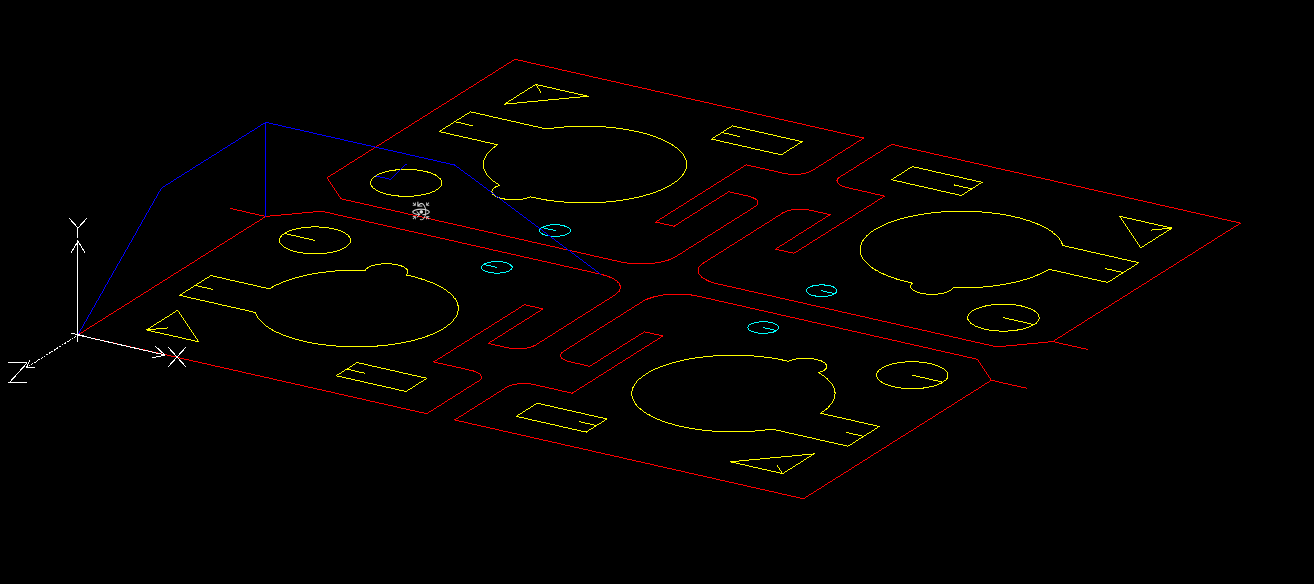
The linuxcnc output :
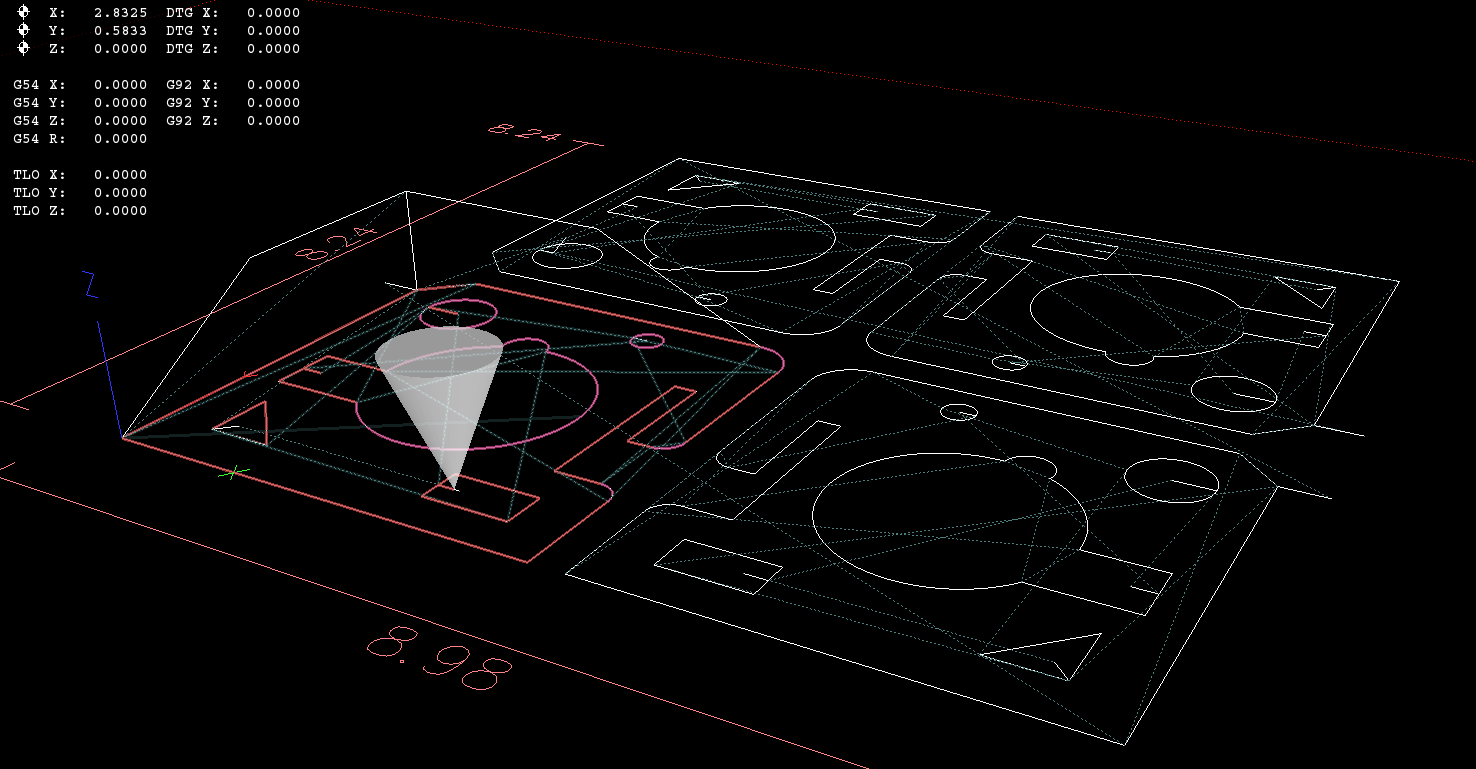
The dxfdecoder screen, not finished. Look at the dxf lines.... pff... more then 197000 lines are processed in about 5 seconds.

Todo : sorting the g-code lines into closed contours, this is quite difficult and can take a lot of time. It looks like make a formule
for solving a colered cubic game.
Todo : add logic about G41 and G42, i think based on the used cad colors. This is user friendly, and will simplify coding a lot.
To run the program, follow this download link, it stay's here one week : we.tl/t-xhbTIJqyYM
unzip and type in terminal : ./untitled
But during writing of the C and C++ code i used all x, y, z parameters. We are lucky that this is done. I did not test this
3d function before. But it works !
Trough the 3d, we can do 3d lead in's, and try to cut little holes with a spiral 3d technique. And for milling it's also handy to
use 3d g-code.
At the moment the basic line, circle, arc are working. Polyline is almost done. Spline is difficult.
If you draw the cad drawing like the preview. It works quite nice for a free program.
I have to do more testing, etc. But everytime i see a bug. I update the code.
Example of 3d cad drawing. The blue lines are the 3d traject.
Look at the option for special lead in, in the hole, blue line...
I have the idea to define the dxf drawing with colors. I look at this option coming day's.
Red = outside offset
Yellow = inside offset
Cyan = slower :woohoo:
The linuxcnc output :
The dxfdecoder screen, not finished. Look at the dxf lines.... pff... more then 197000 lines are processed in about 5 seconds.
Todo : sorting the g-code lines into closed contours, this is quite difficult and can take a lot of time. It looks like make a formule
for solving a colered cubic game.
Todo : add logic about G41 and G42, i think based on the used cad colors. This is user friendly, and will simplify coding a lot.
To run the program, follow this download link, it stay's here one week : we.tl/t-xhbTIJqyYM
unzip and type in terminal : ./untitled
Last edit: 7 years 4 months ago by Grotius.
Please Log in or Create an account to join the conversation.
Time to create page: 0.424 seconds