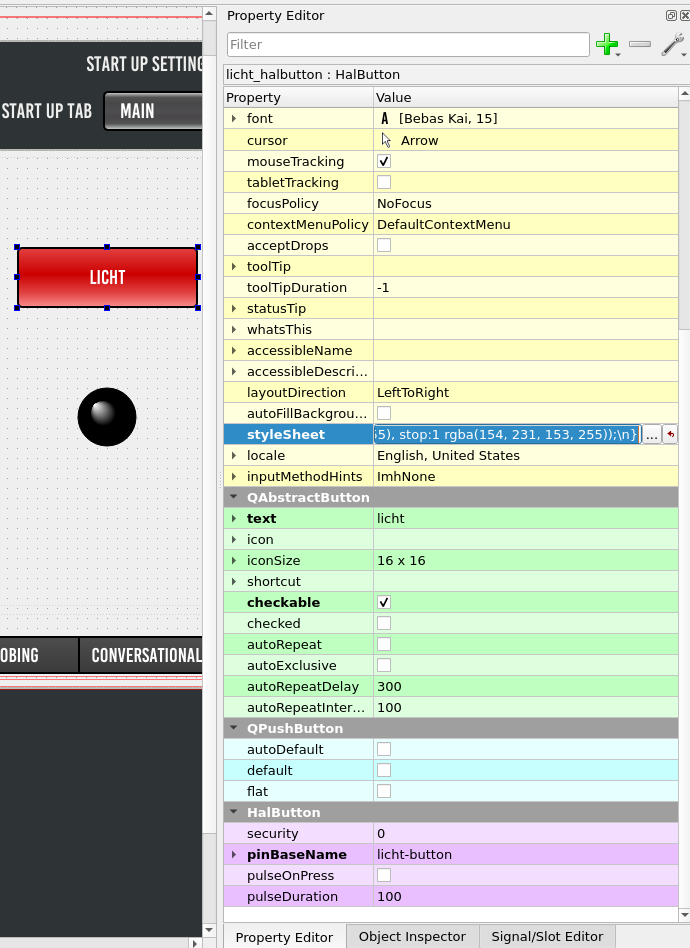
You are trying to control a hal pin, so you will want to use a HalButton from the custom widgets tree. the halpin will have the pinBaseName property you need to set for the button's connection to your licht net. see image below for references:
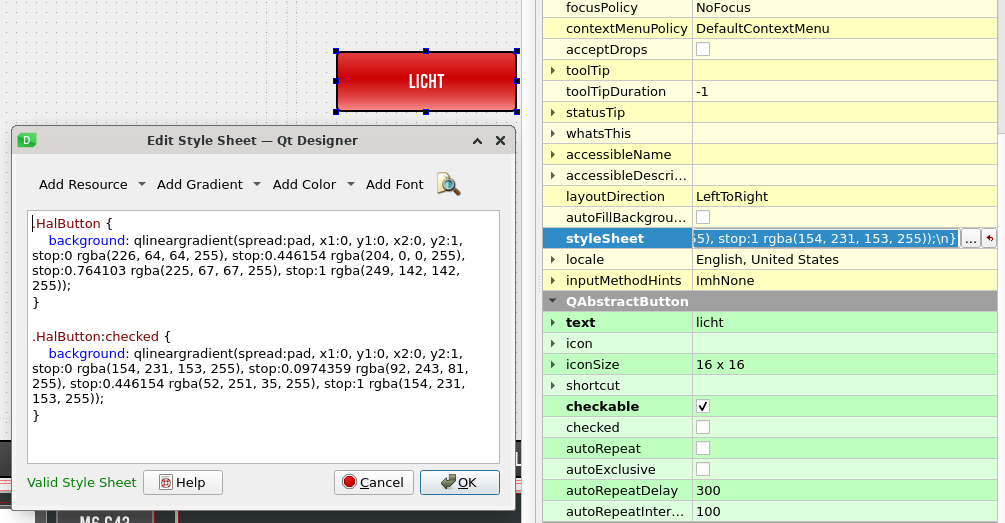
the button color can be style in the stylesheet (see image below) using the following color connections:
Code:
.HalButton {
background: qlineargradient(spread:pad, x1:0, y1:0, x2:0, y2:1, stop:0 rgba(226, 64, 64, 255), stop:0.446154 rgba(204, 0, 0, 255), stop:0.764103 rgba(225, 67, 67, 255), stop:1 rgba(249, 142, 142, 255));
}
.HalButton:checked {
background: qlineargradient(spread:pad, x1:0, y1:0, x2:0, y2:1, stop:0 rgba(154, 231, 153, 255), stop:0.0974359 rgba(92, 243, 81, 255), stop:0.446154 rgba(52, 251, 35, 255), stop:1 rgba(154, 231, 153, 255));
}
Code:
loadrt time
loadrt not
addf time.0 servo-thread
addf not.0 servo-thread
# *** Time items required for Probe Basic to run ***
net prog-running not.0.in <= halui.program.is-idle
net prog-paused halui.program.is-paused => time.0.pause
net cycle-timer time.0.start <= not.0.out
net cycle-seconds qtpyvcp.timerseconds.in <= time.0.seconds
net cycle-minutes qtpyvcp.timerminutes.in <= time.0.minutes
net cycle-hours qtpyvcp.timerhours.in <= time.0.hours
# ---manual tool change signals---
net tool-change-request => qtpyvcp_manualtoolchange.change
net tool-change-confirmed <= qtpyvcp_manualtoolchange.changed
net tool-number => qtpyvcp_manualtoolchange.number
# *** Probe graphic simulation trigger push probe tip ***
net probe-in => qtpyvcp.probe-in.out
net probe-in <= qtpyvcp.probe-led.on
# *** Set line below for actual spindle readout from your hal file ***
net spindle-rpm-filtered scale_to_rpm.out => qtpyvcp.spindle-encoder-rpm.in
# *** custom gui hal widget connections ***
net licht <= qtpyvcp.licht-button.checked
net licht => hm2_7i76e.0.7i76.0.0.output-02
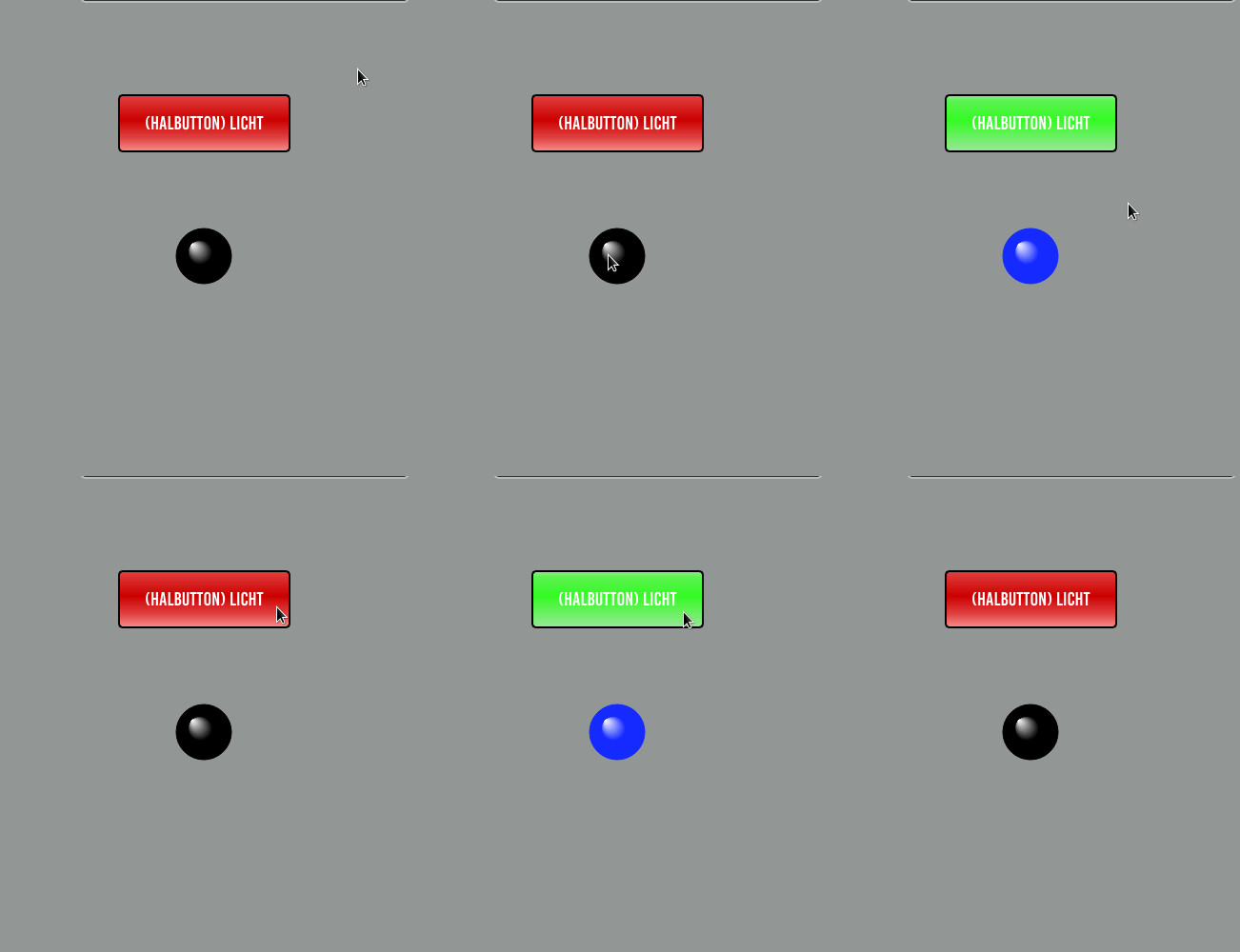
once done you should have something that works like this gif below, but for your physical light: