Touch Plate Explanation please

More
5 years 11 months ago - 5 years 11 months ago #190498 by shortcircuit48
Correct. To get the touch button to work I have to manually do G92.2 first and only once as I can re-touchoff again.
Last edit: 5 years 11 months ago by shortcircuit48.

Please Log in or Create an account to join the conversation.
More
5 years 11 months ago #190501 by Aciera
Just checked and sure enough just switching to the MDI window does not turn halui.mode-is-mdi pin on. It only turns on after a command has been issued, that is ANY command followed by the enter key.
Now this seems to be a quirk of the axis GUI because in gmoccapy, which I use, halui.mode-is-mdi comes on as soon as I change into the MDI tab in the GUI.

Please Log in or Create an account to join the conversation.

More
5 years 11 months ago #190503 by shortcircuit48
Thanks very much and I am not into (have ability) to look into quirks. Will try gmoccapy and see what happens although I prefer Axis as I have not managed to alter my display to show all function. with gmaccapy.

Please Log in or Create an account to join the conversation.

More
5 years 11 months ago #190508 by Aciera
If you have a very small display then gmoccapy might not fit. Also the custom buttons will need to be added.
If you find that gmoccapy does fit your screen then report back and we will see about getting the button for the touch plate added.

Please Log in or Create an account to join the conversation.

More
5 years 11 months ago #190511 by shortcircuit48
Have managed to adjust display . I did not no custom buttons so grateful for guidance to add.

Please Log in or Create an account to join the conversation.

More
5 years 11 months ago - 5 years 11 months ago #190513 by Aciera
Ok, since gmoccapy doesn't use pyvcp we need to change the button over to gladevcp. I made a new button in gladevcp and a new hal file that connects the button to your Ladder and MDI commands. Those two files are in the zipped folder. Then we need to tell gmoccapy to load the button and the hal. That we do in the INI.
So here we go step by step:

1) In your config folder "Router" find the file Router.ini and Right_click on it then rename to say "Copy_Router.ini". Just in case we need this again.

2) unzip this and copy the new Router.ini and the folder "gladevcp" including its contents into your config folder "Router":

File Attachment:

File Name: NewStuff.zip
File Size:2.69 KB


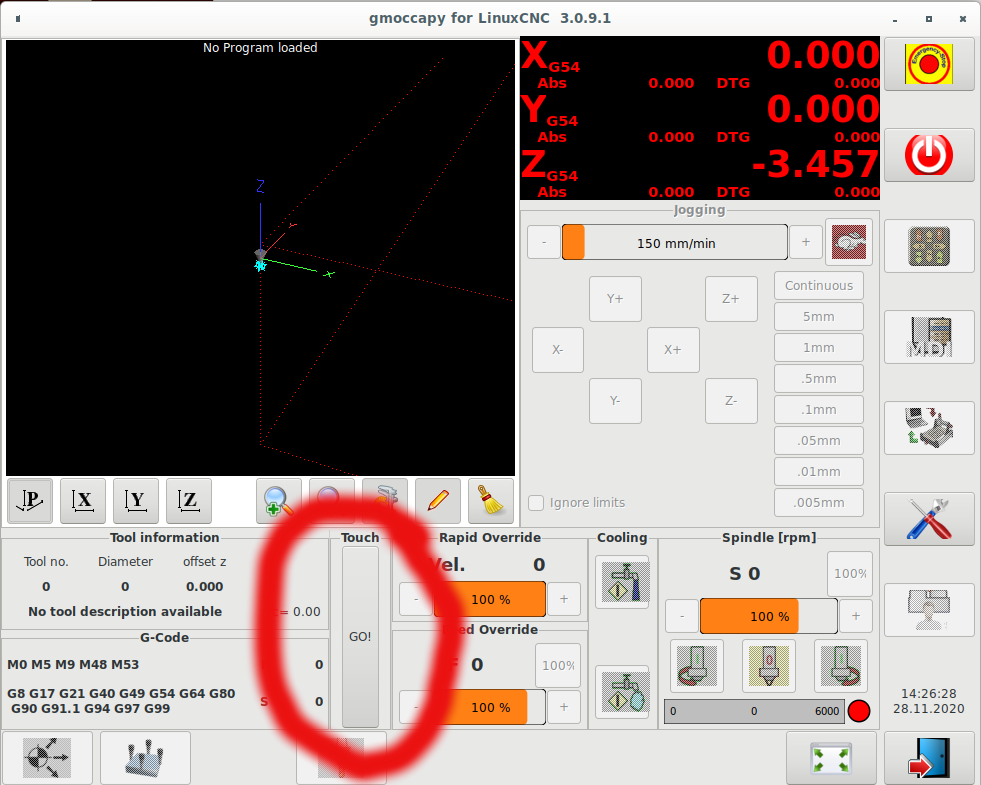
3) Try to start your config and report back if it looks like this and if the button is working

Last edit: 5 years 11 months ago by Aciera. Reason: typo

Please Log in or Create an account to join the conversation.

Time to create page: 0.154 seconds
Powered by Kunena Forum